
# Upload Video
When you have new video content to publish on your website, the content manager must first upload the video file to ByteArk Stream, then place the embed code generated by the system on the website. The steps are as follows.
# 1. Sign in
After the ByteArk team enables the system for you, you will receive three pieces of sign-in information:
- Workspace name
- User email address
- Password
Sign in at stream.byteark.com (opens new window) to access the content management system.
# 2. Upload
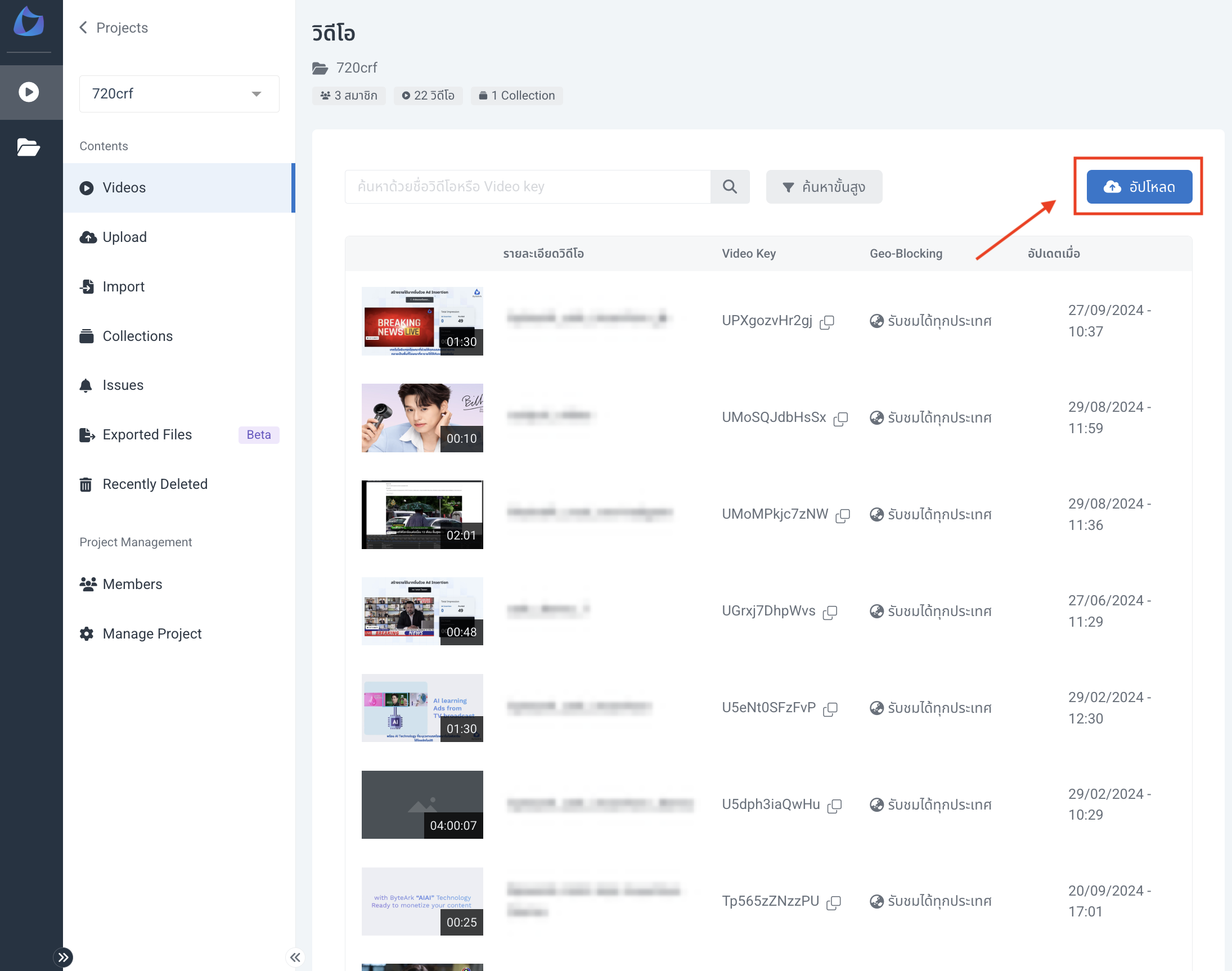
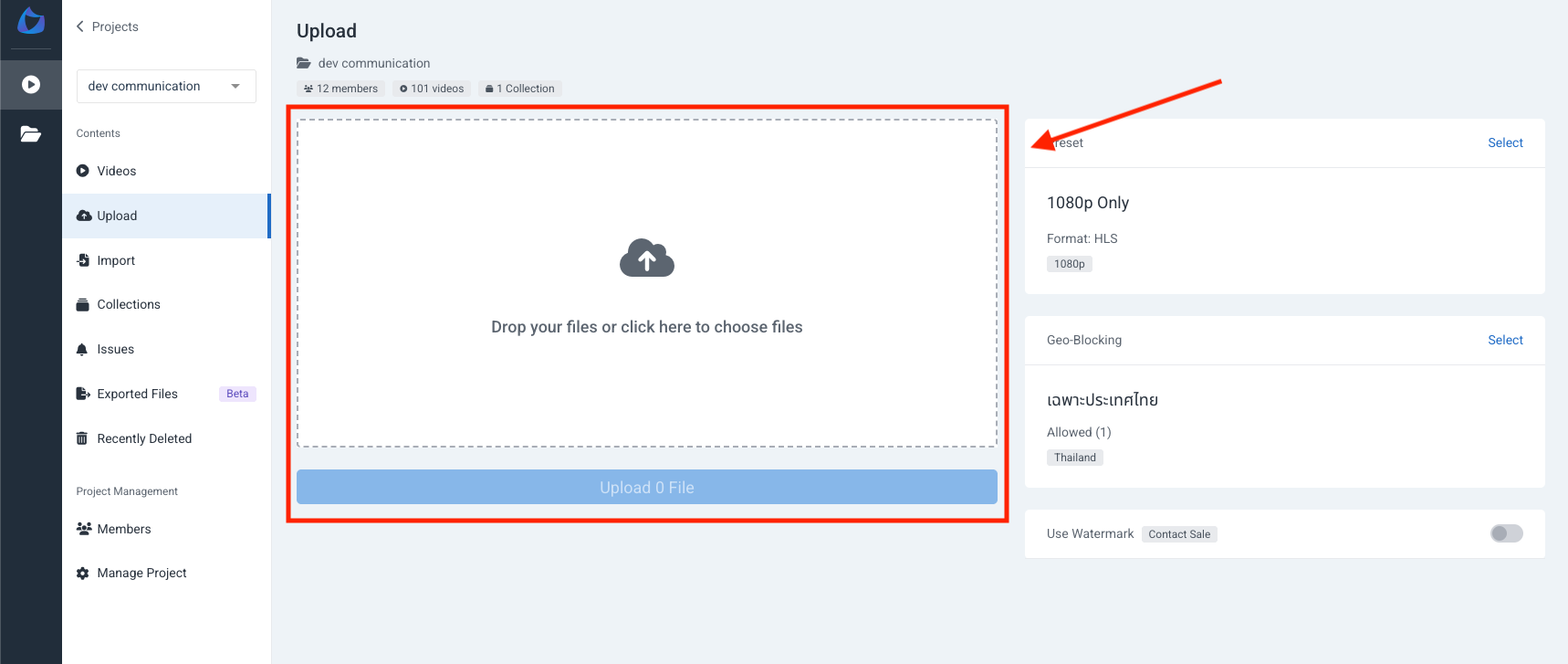
Open the project you want, click the Upload button on the right, then select or drop the files you want to upload. An upload status indicator appears at the bottom right while uploading. Keep the browser open until the upload finishes.
See also
For more detail on uploading and other import methods, see the ByteArk Stream upload guide
# 3. Get the embed code
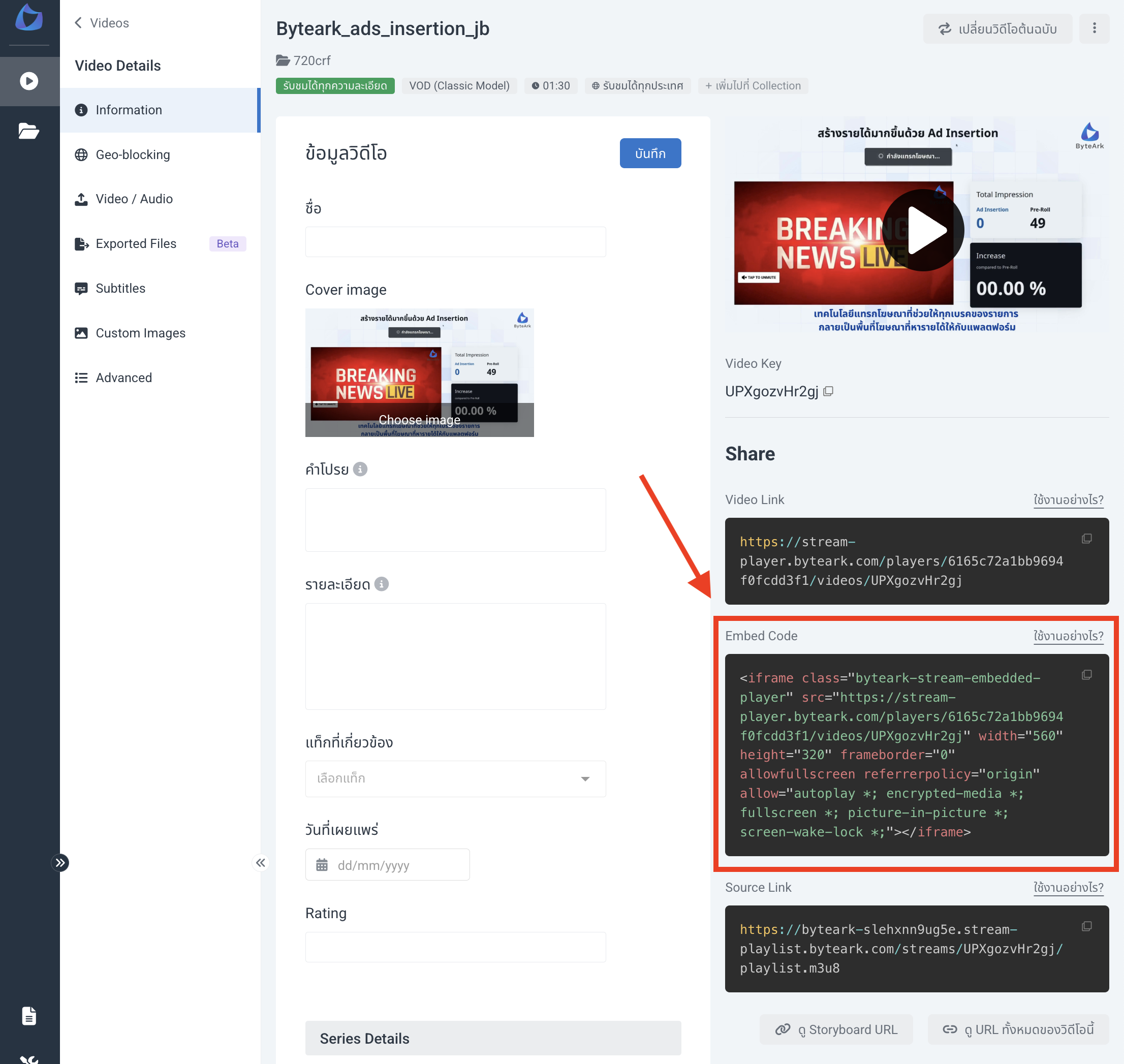
After the upload finishes, go to the Videos tab on the left to see all videos, where the newly uploaded video appears at the top of the list. Click into that video, go to the Embed Code tab on the right, then place the embed code in the appropriate HTML location on your website.
Note: For detailed steps on installing the embed code on your website, see the Developer Integration section.