
# Google Chromecast
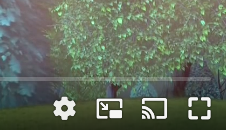
ByteArk Player สามารถแชร์การเล่นวิดีโอจากไปยังอุปกรณ์ Chromecast หรือสมาร์ททีวีที่รองรับระบบ Chromecast ของ Google หากใช้งานบนเว็บบราวเซอร์หรือระบบปฏิบัติการที่รองรับ player จะแสดงปุ่ม Chromecast ขึ้นมาบนแถบควบคุม
# การแสดงผล Chromecast
# การเปิดใช้งาน ByteArk Chromecast Plugin
- การเปิดใช้งาน ByteArk Chromecast บน ByteArk Player สามารถทำได้โดยระบุ
plugins.bytearkChromecastในoptionsเมื่อทำการสร้าง video player โดยสามารถตั้งค่าพารามิเตอร์ต่างๆ ตามตาราง options ด้านล่าง
{
  fluid: true,
  poster: '/assets/samples/player/images/poster-big-buck-bunny.jpg',
  sources: [{
    title: 'Big Buck Bunny',
    src: 'https://byteark-playertzxedwv.stream-playlist.byteark.com/streams/TZyZheqEJUwC/playlist.m3u8',
    type: 'application/x-mpegURL'
  }],
  plugins: {
    bytearkChromecast: {
      // TODO: add your options here
    }
  }
}
1
2
3
4
5
6
7
8
9
10
11
12
13
14
2
3
4
5
6
7
8
9
10
11
12
13
14
# การตั้งค่า
| Name | Type | Required | Description |
|---|---|---|---|
| showButton | Boolean | No | แสดง/ซ่อน ปุ่ม Chromecast |
| castOptions | Object | No | ตั้งค่า Chromecast SDK CastOptions (opens new window) |
# ตัวอย่าง
<!doctype html>
<html>
  <head>
    <meta charset="utf-8">
  </head>
  <body>
    <div id="video-player"></div>
    <script src="https://byteark-sdk.cdn.byteark.com/player/v2/byteark-player.min.js"></script>
    <script>
      var player = bytearkPlayer('video-player', {
        fluid: true,
        poster: '/assets/samples/player/images/poster-big-buck-bunny.jpg',
        sources: [{
          title: 'Big Buck Bunny',
          src: 'https://byteark-playertzxedwv.stream-playlist.byteark.com/streams/TZyZheqEJUwC/playlist.m3u8',
          type: 'application/x-mpegURL'
        }],
        plugins: {
          bytearkChromecast: {
            showButton: true
          }
        }
      });
    </script>
  </body>
</html>
1
2
3
4
5
6
7
8
9
10
11
12
13
14
15
16
17
18
19
20
21
22
23
24
25
26
2
3
4
5
6
7
8
9
10
11
12
13
14
15
16
17
18
19
20
21
22
23
24
25
26